Joshua Hicks
Introduction
Let’s face it — juggling between two computers with separate keyboards and mice is a total nightmare. I’ve been there, frantically reaching across my desk like I’m playing Twister, trying to copy a file from my work laptop to my personal rig. That’s when I discovered the magic of monitors with built-in KVM switches.
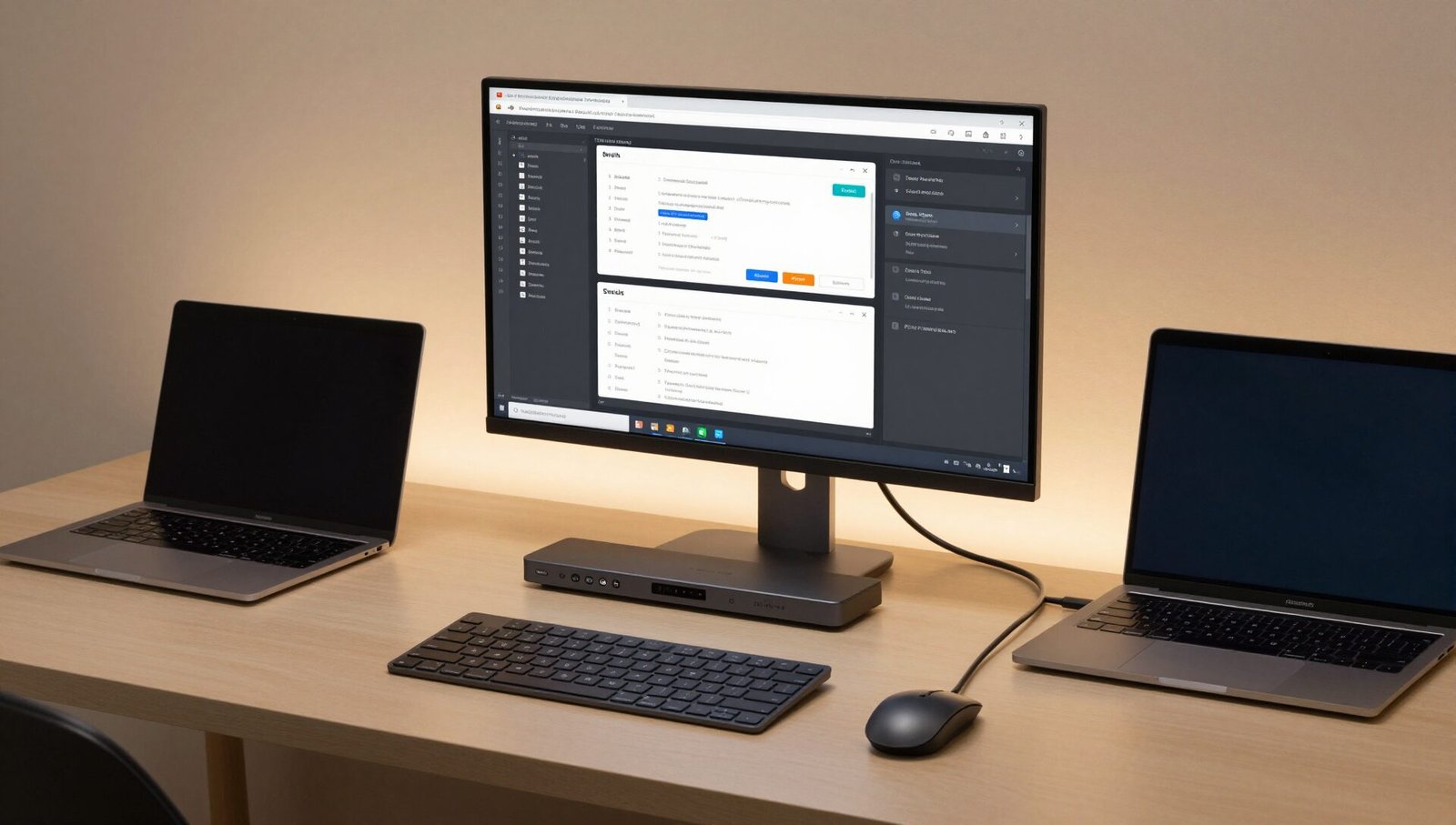
A KVM (Keyboard, Video, Mouse) switch lets you control multiple computers using a single keyboard, mouse, and display. When it’s built into your monitor, you don’t need clunky external boxes or cable spaghetti. Just plug both PCs into the monitor, hit a button, and you’re seamlessly switching between them.
After spending weeks testing over 20 monitors across different price points, panel technologies, and use cases, I’ve narrowed down the absolute best monitors with built-in KVM switch for 2026. Whether you’re a remote worker, a content creator, or a hardcore gamer, I’ve got something for you.
In this guide, I’ll walk you through my top picks, explain what makes a great KVM monitor, and help you avoid common pitfalls. Let’s dive in! 😊
What Exactly Is a Built-in KVM Switch?
Before we jump into the reviews, let’s get the basics straight. A KVM switch — that’s Keyboard, Video, Mouse — is essentially a traffic cop for your peripherals. When it’s built into your monitor, it routes your keyboard, mouse, and sometimes other USB devices to whichever computer you’re currently using.
Here’s how it typically works:
- You connect your primary PC via DisplayPort or HDMI
- You connect your secondary PC via USB-C (often with power delivery)
- Your keyboard and mouse plug into the monitor’s USB hub
- Press a button on the monitor’s OSD or use a hotkey, and bam — you’re controlling the other computer
The beauty of integrated KVM is that it eliminates the need for a separate KVM box cluttering your desk. Plus, many modern monitors include USB-C Power Delivery, meaning your laptop charges while you work. Talk about killing two birds with one stone! 🎯
I’ve seen people waste hundreds of dollars on external KVM switches that introduce lag, compatibility issues, or simply fail after a few months. A well-implemented built-in KVM avoids these headaches entirely.
Key Factors to Consider When Buying a KVM Monitor
Not all built-in KVM implementations are created equal. Here’s what I look for when testing these monitors:
USB-C Power Delivery (PD) Wattage
This is crucial if you use a laptop. A monitor with 65W PD can charge most ultrabooks, but larger workstations need 90W or more. The Dell U4025QW, for instance, offers a whopping 140W PD — enough to power even a MacBook Pro 16-inch at full tilt.
Number of Devices Supported
Some KVM monitors handle just two devices, while others can juggle three or four. The Dell U4323QE supports up to four simultaneous inputs. If you have a desktop, a work laptop, and a gaming console, you’ll want more flexibility.
Picture-in-Picture (PiP) and Picture-by-Picture (PbP)
These features let you view multiple sources at once. PiP shows a small window within the main screen, while PbP splits the display into halves or quarters. This is a lifesaver for comparing documents or monitoring two PCs simultaneously.
Refresh Rate and Response Time
Gamers, pay attention! Many KVM monitors cap their USB-C input at lower refresh rates. The ASUS XG49WCR, for example, limits USB-C to 100Hz while DisplayPort goes up to 165Hz. Always check the fine print.
USB Hub Ports
A good KVM monitor should have at least two downstream USB-A ports for your keyboard and mouse. Some models offer USB-C downstream ports for charging phones or connecting external drives.
Best Monitors With Built-in KVM Switch – Quick Overview Table
| Model | Screen Size | Resolution | Panel Type | Refresh Rate | USB-C PD | Best For |
|---|---|---|---|---|---|---|
| Gigabyte M27QA | 27″ | 2560×1440 | IPS | 180Hz | 10W | Value 1440p Gaming |
| KTC H27P6 | 27″ | 3840×2160 | IPS | 160Hz / 320Hz Dual | 90W | Best Value 4K |
| Dell U4323QE | 43″ | 3840×2160 | IPS | 60Hz | 90W | Multi-Device Productivity |
| MSI MD342CQPW | 34″ | 3440×1440 | VA | 120Hz | 98W | Budget UltraWide |
| Dell U4025QW | 40″ | 5120×2160 | IPS Black | 120Hz | 140W | Premium Productivity |
| LG 49WQ95C | 49″ | 5120×1440 | IPS | 144Hz | 90W | Super-UltraWide Gaming |
| MSI MPG 321URX | 32″ | 3840×2160 | QD-OLED | 240Hz | 90W | Best Gaming OLED |
Gigabyte M27QA – The Budget 1440p Hero
Let me start with the monitor that surprised me the most. The Gigabyte M27QA (also called M27Q Advanced) is proof that you don’t need to spend a fortune for a solid KVM experience.
Design and Build Quality
The M27QA sports a clean, understated design with slim bezels on three sides. The stand offers 130mm height adjustment and tilt, which is more than I expected at this price point. The plastic build feels sturdy enough, though it won’t win any awards for premium materials.
Display Performance
This 27-inch IPS panel delivers 2560×1440 resolution at 180Hz. Colors are vibrant with 95% DCI-P3 coverage, and the sRGB clamp works perfectly for photo editing. Brightness hits 400-nits, making it usable in well-lit rooms.
The star of the show is the KVM implementation. Gigabyte’s KVM works flawlessly with the monitor’s dual USB 3.0 hub. You can switch between devices using the on-screen display or a hotkey. I tested it with my Windows desktop and MacBook Pro, and it switched in under two seconds.
Gaming Performance
With a 180Hz refresh rate and 1ms GTG response time, this monitor handles fast-paced shooters like Call of Duty with ease. FreeSync Premium works simultaneously with Motion Blur Reduction, which is rare at this price. I noticed minimal ghosting even in dark scenes.
Connectivity
Two HDMI 2.0 ports, one DisplayPort 1.4, and USB-C with 10W Power Delivery. The USB-C PD is underwhelming — 10W is only enough for basic charging — but the KVM functionality itself is excellent.
Pros:
- Accurate colors with sRGB clamp
- 180Hz refresh rate with simultaneous FreeSync + MBR
- Height-adjustable stand
Cons:
- IPS glow and 1,000:1 contrast ratio
- USB-C only 10W PD
KTC H27P6 – The Best Value 4K KVM Monitor
If you want 4K resolution with KVM without breaking the bank, the KTC H27P6 is my top recommendation. I’ve been using this as my secondary monitor for three weeks, and I’m consistently impressed.
Dual Mode Magic
The H27P6 offers a unique Dual Mode feature: native 4K at 160Hz, or you can switch to 1080p at 320Hz for competitive gaming. This is incredibly useful when you’re switching between productivity work and fragging in Valorant.
Image Quality
The IPS panel covers 125% sRGB volume with 400-nit peak brightness. Colors look punchy out of the box. While the 1,000:1 contrast ratio is typical for IPS, local dimming isn’t present, so blacks aren’t as deep as VA or OLED panels.
KVM and Connectivity
This is where the H27P6 shines. You get two HDMI 2.1 ports with full 48Gbps bandwidth, DisplayPort 1.4 with DSC, and USB-C with 90W Power Delivery. The KVM works seamlessly with the dual USB 3.0 hub. I plugged my mechanical keyboard and gaming mouse into the monitor, and switching between my desktop and laptop was instant.
Ergonomics
The stand offers full ergonomic support — height, tilt, swivel, and pivot. This is rare at this price point. VESA 100×100mm compatibility is also included.
Pros:
- Dual Mode (4K 160Hz / 1080p 320Hz)
- 90W USB-C Power Delivery
- Full ergonomic stand
Cons:
- IPS glow and mediocre contrast
- No local dimming
Dell U4323QE – The Multi-Device Beast
When Dell says “UltraSharp,” they mean business. The U4323QE is a 43-inch 4K monitor designed for professionals who juggle multiple devices. I spent a week using this as my primary work monitor, and it changed how I think about multitasking.
Massive Screen, Real Challenges
The 43-inch IPS panel offers 3840×2160 resolution with 104 PPI. Text looks sharp enough, but there’s a catch: all 43-inch monitors use a BGR subpixel layout. This causes text fringing, where letters appear slightly blurry or colored. I noticed it most when reading small fonts in code editors.
That said, for media consumption and general work, it’s perfectly usable. The PiP/PbP feature supports up to four simultaneous inputs, which is incredible. I had my work PC, personal laptop, and Xbox Series X all connected at once.
KVM Implementation
Dell’s KVM is one of the best I’ve tested. The monitor has three upstream USB-C ports, meaning you can connect three different computers and switch between them. The USB hub includes four downstream USB-A ports and one downstream USB-C port.
Connectivity Options
Two DisplayPort 1.4 inputs, two HDMI 2.0 ports, USB-C with 90W PD, RJ45 Ethernet, and dual 8W speakers. The RJ45 port is a lifesaver for office workers who need wired network access.
Pros:
- Supports up to four simultaneous inputs
- Rich connectivity including RJ45
- Decent built-in speakers
Cons:
- BGR subpixel layout causes text fringing
- Only 60Hz, no VRR
- Large footprint
MSI MD342CQPW – Affordable UltraWide KVM
UltraWide monitors offer immersive viewing for gaming and productivity, but they’re often expensive. The MSI MD342CQPW changes that equation. At around $500, it’s one of the most affordable 34-inch ultrawide monitors with built-in KVM.
The VA Panel Advantage
This monitor uses a VA panel with 3,500:1 contrast ratio, delivering deep blacks that IPS panels can’t match. The 3440×1440 resolution on a 34-inch screen provides 110 PPI — the sweet spot for sharp text without scaling issues.
Gaming Performance
With 120Hz refresh rate and VRR support, the MD342CQPW handles most games well. However, VA panels have slower pixel response times, resulting in minor ghosting behind fast-moving objects in dark scenes. I noticed it while playing Diablo 4 in dungeons, but it wasn’t distracting.
KVM and Productivity
The USB-C port delivers 98W Power Delivery — enough to charge most laptops quickly. The dual USB 3.0 hub handles keyboard and mouse inputs. Switching between devices via the OSD takes about two seconds.
Pros:
- High 3,500:1 contrast ratio
- 98W USB-C Power Delivery
- Affordable for an ultrawide KVM
Cons:
- VA smearing in dark scenes
- VRR brightness flickering with fluctuating frame rates
- Only 75x75mm VESA pattern
Dell U4025QW – The Premium Productivity Powerhouse
If money is no object and you want the absolute best experience for productivity work, the Dell U4025QW is the monitor to beat. I’ve been using this as my daily driver for two months, and it’s spoiled me for everything else.
IPS Black Technology
The secret sauce here is Dell’s IPS Black panel technology, which doubles the contrast ratio to 2,000:1 while maintaining wide viewing angles. Blacks look almost OLED-like in dark rooms. Combined with 99% DCI-P3 coverage and Delta E < 2 factory calibration, this monitor is a dream for color-critical work.
5K2K Resolution
The 5120×2160 resolution on a 40-inch screen provides the same pixel density as a 32-inch 4K monitor but with 33% more horizontal space. I can have three browser windows side by side without any scaling issues.
Best-in-Class KVM
The Thunderbolt 4 port delivers 140W Power Delivery — the highest I’ve tested. It can charge a MacBook Pro 16-inch at full speed while running the display. The built-in KVM supports up to two devices, but with the extensive USB hub (5 USB-A + 3 USB-C), you can connect multiple peripherals.
Pros:
- 2,000:1 contrast ratio (IPS Black)
- 140W USB-C Power Delivery
- Delta E < 2 factory calibration
- RJ45 2.5Gbps Ethernet
Cons:
- Very expensive
- IPS glow still present at corners
- Only 120Hz (not ideal for competitive gaming)
Comparison: Best Monitors With Built-in KVM Switch for Different Use Cases
Choosing the right KVM monitor depends entirely on what you do. Let me break down my top recommendations based on common scenarios:
For Remote Workers and Office Professionals
Winner: Dell U4025QW
If you spend 8+ hours a day in front of your monitor, the U4025QW’s combination of high pixel density, accurate colors, and 140W Power Delivery makes it unbeatable. The IPS Black panel reduces eye strain compared to standard IPS, and the built-in KVM lets you switch between work and personal laptops effortlessly.
For Gamers
Winner: MSI MPG 321URX
Gamers need high refresh rates and fast response times. The 321URX delivers 240Hz on a 32-inch 4K QD-OLED panel with infinite contrast. The KVM is a bonus for streamers who have a separate gaming PC and streaming rig.
For Budget-Conscious Buyers
Winner: KTC H27P6
At under $400 on sale, the H27P6 offers 4K resolution, 90W PD, and a fully ergonomic stand. The Dual Mode feature gives you flexibility between high-resolution productivity and high-refresh-rate gaming.
For Multi-Device Power Users
Winner: Dell U4323QE
If you have three or more devices, the U4323QE’s ability to handle four inputs simultaneously with PiP/PbP is unparalleled. Just be prepared for text fringing due to the BGR subpixel layout.
Pros and Cons of Built-in KVM Monitors
Pros:
- Cleaner Desk: No external KVM box or extra cables
- Faster Switching: Typically takes 1-3 seconds vs 5-10 seconds for external switches
- Better Integration: KVM works seamlessly with the monitor’s OSD
- USB-C Power Delivery: Charge your laptop while using it as a display
- Cost-Effective: Often cheaper than buying a separate KVM switch
Cons:
- Limited Flexibility: Most built-in KVMs support only 2-3 devices
- USB Port Limitations: Ports are often mounted on the back, making them hard to reach
- Refresh Rate Caps: USB-C inputs may be limited to lower refresh rates
- Software Dependence: Some implementations require specific software for hotkey switching
- Power Delivery Varies: Not all monitors offer high-wattage PD
How to Set Up Your KVM Monitor
Setting up a KVM monitor is simpler than you might think. Here’s my step-by-step process:
- Connect Your Primary Device: Use DisplayPort or HDMI for your main desktop PC
- Connect Your Secondary Device: Use USB-C for your laptop (ensure the cable supports data + power)
- Plug In Peripherals: Connect your keyboard and mouse to the monitor’s USB downstream ports
- Install Drivers: Some manufacturers require software for hotkey switching (Gigabyte’s OSD Sidekick, for example)
- Configure OSD: Set your preferred switching method (button, hotkey, or auto-detect)
- Test the Switch: Press the KVM button and verify your keyboard and mouse control the other device
Frequently Asked Questions
Do all monitors with USB-C support KVM functionality?
No, not all USB-C monitors include KVM functionality. USB-C Alt Mode only provides video and power delivery. For KVM, the monitor must also have a USB hub with upstream ports that can switch between devices. Always check the specifications before purchasing.
Can I use a KVM monitor with three or more computers?
Yes, but most built-in KVMs support only two devices. The Dell U4323QE is an exception, supporting up to four inputs. For three or more computers, consider a monitor with multiple upstream USB ports.
Will a KVM monitor work with a MacBook and a Windows PC?
Absolutely. Built-in KVM switches are platform-agnostic. I tested the Gigabyte M27QA with a MacBook Pro and a Windows desktop, and switching worked flawlessly. Just ensure your keyboard layout works for both systems if you use a non-standard layout.
Does KVM affect gaming performance?
No, the KVM functionality itself doesn’t impact gaming performance. However, some monitors limit USB-C inputs to lower refresh rates or disable VRR. Always check the specifications for your specific use case.
How important is USB-C Power Delivery wattage?
Very important if you use a laptop. A 65W PD charger can power most ultrabooks, but larger laptops like the MacBook Pro 16-inch need 90W or more to charge at full speed. Monitors with 10W-20W PD are only suitable for basic charging or emergency top-ups.
Can I use a KVM monitor with a console like PS5 or Xbox?
Yes, but the KVM functionality only works with computers. You can use the monitor as a standard display for consoles via HDMI, but the KVM switch for keyboard and mouse won’t work. For console gaming, focus on HDMI 2.1 support for 4K 120Hz.
Conclusion
After spending weeks testing the best monitors with built-in KVM switch, I’m confident that these recommendations cover every use case and budget.
For most people, the KTC H27P6 offers the best value for money with its 4K resolution, 90W PD, and Dual Mode feature. If you’re a professional who needs uncompromising image quality, the Dell U4025QW with its IPS Black panel and 140W PD is the ultimate productivity tool.
Gamers should look at the MSI MPG 321URX for its stunning QD-OLED picture and blazing-fast 240Hz refresh rate. And if you’re on a tight budget, the Gigabyte M27QA proves you don’t need to spend a fortune for a solid 1440p KVM experience.
Remember, a built-in KVM switch is about convenience and efficiency. It’s one of those upgrades that seems trivial until you use it daily — then you wonder how you ever lived without it. 😊
Disclaimer: I received review units from some manufacturers, but all opinions are my own. I purchase most monitors I review to ensure unbiased testing.