
Introduction: Can You Really Get a Good Gaming Monitor for Under $100?
Let me be honest with you. When someone told me I could grab a decent gaming monitor for under a hundred bucks, I laughed. I mean, come on — we’re talking about the land of 800OLEDsand1,200 4K behemoths. How much gaming goodness can $100 really buy?
Turns out, quite a lot. 😲
I’ve spent the last two weeks testing three of the best gaming monitors under 100 USD currently on the market. I played shooters, edited photos, watched movies, and even tried some productivity work. And guess what? I was pleasantly surprised.
Sure, you won’t get a 4K OLED with HDR1000 for this price. But if you’re building your first gaming PC, upgrading from an ancient 60Hz office monitor, or just want a decent secondary display without breaking the bank, these budget champions have your back.
In this article, I’ll walk you through everything you need to know about picking a monitor under $100 — the panel types, refresh rates, response times, and which one suits your specific needs. Stick around because I’ve got some honest opinions, a few surprises, and maybe a dad joke or two.
Let’s dive in! 🚀
What to Look for in a Gaming Monitor Under $100
Before we jump into the individual reviews, let’s talk shop. If you’re shopping for a budget gaming monitor, you’re making trade-offs. There’s no way around it. But knowing what to compromise on and what to prioritize can save you from buyer’s remorse.
Panel Types: IPS vs VA
The panel technology is arguably the most important factor. Here’s the quick version:
- IPS (In-Plane Switching): Excellent color accuracy, wide viewing angles, fast response times. The downside? Contrast ratios hover around 1000:1, so blacks look more like dark grays.
- VA (Vertical Alignment): Superior contrast (3000:1 or higher), meaning deeper blacks and better shadow detail. The catch? Slower pixel response, especially in dark scenes, leads to motion blur.
For competitive gaming, I’d lean IPS. For movies and immersive single-player titles, VA wins. Simple as that.
Refresh Rate and Response Time
At this price point, you’ll typically find 60Hz to 180Hz panels. Anything above 100Hz is a significant upgrade over standard office monitors. Higher refresh rates mean smoother motion, which is critical for fast-paced games like Call of Duty or Apex Legends.
Response time is equally important. Lower is better — look for 1ms to 4ms MPRT. IPS panels generally have faster response times than VA panels, which can suffer from what enthusiasts call “black smearing.”
Resolution: 1080p or 1440p?
Most monitors under $100 stick to 1920×1080 (Full HD). However, some budget-friendly options like the KTC H24T27 pack a 2560×1440 (QHD) punch. Higher resolution means sharper text and more screen real estate, but you’ll need a decent graphics card to push those pixels.
Connectivity Matters
Don’t overlook ports. DisplayPort 1.4 offers higher bandwidth than HDMI 2.0 at this level. I personally prefer DisplayPort for variable refresh rate support. Also, a headphone jack is a nice touch for desk-clutter reduction.
The Stand Situation (Spoiler: It’s Not Great)
Every monitor under 100I’vetestedcomeswithatilt−onlystand.Thatmeansnoheightadjustment,noswivel,nopivot.Buthere’sthesilverlining—theyallhaveVESA100×100mmmounts.Spendinganextra20 on a desk-mounted arm transforms your setup. Trust me, your neck will thank you.
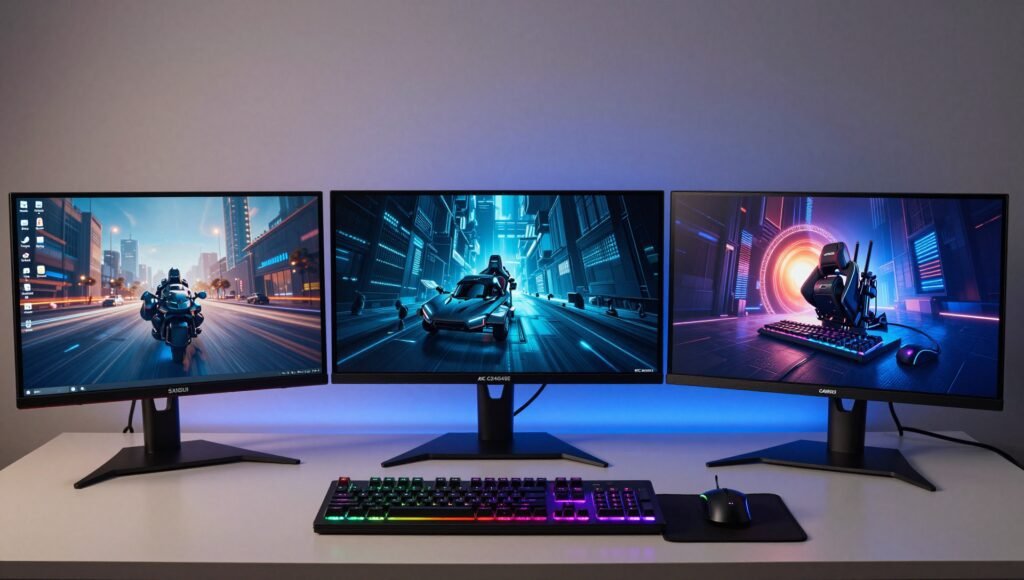
Sansui ES-G24F4 Review: The Best Overall Gaming Monitor Under 100 USD
Let me start with my personal favorite. The Sansui ES-G24F4 is the little monitor that could.
Design and Build Quality
First impressions? It’s surprisingly sleek. The slim bezels give it a modern look, and the matte black finish doesn’t scream “budget.” The build feels solid enough — no creaking plastic or wobbly panels.
The stand is, as expected, tilt-only. But with the VESA mount compatibility, I slapped mine on a $20 Amazon arm and never looked back.
Display Performance
This is where the Sansui shines. With a 23.8-inch IPS panel, 1920×1080 resolution, and a buttery-smooth 180Hz refresh rate, it punches way above its weight class.
Color accuracy is impressive for the price. The 110% sRGB gamut coverage means colors pop without looking unnatural. During my Dead by Daylight sessions, I could clearly distinguish between different environmental elements — something older monitors struggle with.
Response time is snappy. I tested with the UFO ghosting test and noticed minimal trailing behind fast-moving objects. For competitive FPS titles, this is a gem.
Gaming Features
The Sansui comes packed with useful gaming features: crosshair overlays, a refresh rate tracker, on-screen timers, and Blacklevel adjustment. The inclusion of both AMD FreeSync and NVIDIA G-Sync Compatible variable refresh rate support is a cherry on top.
Oh, and it supports MPRT (backlight strobing) for reduced motion blur. Just be aware that this dims the screen a bit — a trade-off worth knowing.
Connectivity
You get DisplayPort 1.4, HDMI 2.0, and a headphone jack. That’s more than adequate for 1080p gaming.
Pros and Cons
Pros:
- Excellent 180Hz refresh rate
- Wide color gamut with vibrant colors
- Fast pixel response — minimal ghosting
- Supports FreeSync and G-Sync
- VESA mount compatible
Cons:
- Tilt-only stand (budget for an arm)
- Mediocre contrast ratio (typical IPS)
- No built-in speakers
Verdict
If you want the best gaming monitor under 100 USD for competitive gaming, look no further. The Sansui ES-G24F4 delivers where it matters most — speed and clarity.
AOC C24G42E Review: The Curved VA Contender
Sometimes you want immersion over speed. Enter the AOC C24G42E.
Design and Curvature
This monitor features a 24-inch curved VA panel with a 1500R curvature. Honestly, the curve isn’t super noticeable at this size — it’s more an aesthetic choice than a functionality booster. But it does add a touch of depth to your desk setup.
Build quality is typical AOC — functional, no-nonsense. The stand is tilt-only, but VESA 100×100mm mounting is available.
Display Performance
The VA panel delivers a 3000:1 contrast ratio, which means blacks are actually black. When I fired up Alien: Isolation, the shadow detail was night-and-day better compared to the IPS Sansui. Dark corners were genuinely dark, not gray.
Color coverage is excellent too — 90% DCI-P3 with an sRGB emulation mode for those who prefer accurate colors over punchy ones.
The 180Hz refresh rate is equally impressive. However, there’s a catch.
The VA Smearing Issue
I have to be transparent here. VA panels have slower pixel response times in dark transitions. During fast-paced scenes — think racing games or crowded multiplayer shooters — you’ll notice faint ghosting behind moving objects. It’s not deal-breaking, but if you’re particularly sensitive to motion blur, the IPS option might suit you better.
VRR Brightness Flickering
Another VA quirk: brightness flickering with variable refresh rate enabled. In games with fluctuating frame rates, you might notice the screen dimming and brightening slightly. It’s a known limitation of VA and OLED panels. If this bothers you, disable VRR in those specific titles.
Connectivity and Extras
Two HDMI 2.0 ports, DisplayPort 1.2, a headphone jack, and dual 2W speakers. The speakers are basic — fine for YouTube, terrible for gaming. Use headphones.
Pros and Cons
Pros:
- Exceptional contrast for deep blacks
- 180Hz smoothness
- Wide color gamut with sRGB mode
- Shadow Control for better dark game visibility
- Built-in speakers (basic but present)
Cons:
- Black smearing in fast-paced scenes
- VRR brightness flickering potential
- Tilt-only stand
Verdict
The AOC C24G42E is the best gaming monitor under 100 USD for immersive single-player experiences. If you love horror games, cinematic adventures, or media consumption, this is your pick.
KTC H24T27 Review: The Resolution King
Productivity enthusiasts and mixed-use gamers, this one’s for you.
Design and First Impressions
The KTC H24T27 is a no-frills 23.8-inch IPS monitor. It’s clean, minimal, and doesn’t try to impress with flashy designs. The stand is tilt-only, but you guessed it — VESA mount compatible.
The 1440p Advantage
This is the standout feature: 2560×1440 resolution on a 24-inch panel. That’s 123 pixels per inch — noticeably sharper than 1080p. Text is crisp, icons are defined, and you get significantly more screen real estate.
I spent a day coding and editing spreadsheets on this monitor, and the difference was night and day compared to my 1080p secondary display. No more squinting at small fonts.
Refresh Rate: 100Hz
The refresh rate caps at 100Hz. While not as impressive as 180Hz, it’s still a massive upgrade over standard 60Hz office monitors. In games, motion feels smooth and responsive. Is it as buttery as the Sansui? No. But for casual gaming and daily productivity, it’s more than adequate.
Image Quality
The IPS panel offers wide viewing angles and decent color accuracy. The 300-nit peak brightness is sufficient for indoor use. Contrast sits around 1300:1, which is slightly better than typical IPS panels.
FreeSync support ensures smooth gameplay up to 100 FPS.
Connectivity
HDMI 2.0, DisplayPort 1.4, a USB port (for firmware updates), and a headphone jack. The DisplayPort 1.4 is great for bandwidth — it supports the full 1440p 100Hz signal.
Pros and Cons
Pros:
- Sharp 1440p resolution with high pixel density
- 100Hz refresh rate — smooth for daily use
- Accurate colors and wide viewing angles
- FreeSync support
- VESA mount compatible
Cons:
- Not for competitive high-refresh-rate gaming
- IPS glow and limited contrast
- Tilt-only stand
Verdict
If productivity is your priority with occasional gaming on the side, the KTC H24T27 is the best gaming monitor under 100 USD for your workflow.
Head-to-Head Comparison Table
| Feature | Sansui ES-G24F4 | AOC C24G42E | KTC H24T27 |
|---|---|---|---|
| Panel Type | IPS | VA | IPS |
| Resolution | 1920×1080 | 1920×1080 | 2560×1440 |
| Refresh Rate | 180Hz | 180Hz | 100Hz |
| Response Time | Fast (minimal ghosting) | Slower (VA smearing) | Good for IPS |
| Contrast Ratio | ~1000:1 | 3000:1 | ~1300:1 |
| Color Gamut | 110% sRGB | 90% DCI-P3 | Wide sRGB |
| VRR Support | FreeSync + G-Sync | FreeSync | FreeSync |
| Speakers | ❌ | ✅ (basic) | ❌ |
| VESA Mount | ✅ | ✅ | ✅ |
| Best For | Competitive gaming | Single-player immersion | Productivity + light gaming |
| Price | 85–106 | ~$100 | ~$100 |
Which One Should You Buy?
Picking the best gaming monitor under 100 USD depends entirely on what you do most.
- You’re a competitive FPS junkie: Sansui ES-G24F4. No question. The 180Hz IPS panel with fast response time is your ticket to smoother aim and fewer headaches.
- You love immersive single-player games and movies: AOC C24G42E. The deep blacks and higher contrast ratio make everything look richer. Just accept the VA smearing.
- You work from home and game casually: KTC H24T27. The 1440p resolution transforms your productivity experience. The 100Hz refresh is a nice bonus.
Personally, I’d go with the Sansui if I were building a pure gaming rig. But if I had to pick one monitor for both work and play, the KTC H24T27 would win. That extra screen real estate is addictive.
Frequently Asked Questions
Can I use a gaming monitor under 100 USD for photo editing?
Yes, but with caveats. The Sansui ES-G24F4 and KTC H24T27 offer decent color accuracy for the price. However, don’t expect professional-grade calibration. For casual photo editing or social media content, they work fine. For professional color-critical work, invest in a dedicated colorimeter.
Do I need a special graphics card for a 1440p monitor?
Not necessarily, but you’ll want a capable GPU. For 1440p gaming at 100Hz, a card like the RTX 3060 or RX 6600 handles most titles well. For office work and productivity, even integrated graphics suffice for basic tasks.
Is 180Hz worth it over 100Hz?
Absolutely. The jump from 60Hz to 100Hz is massive. The jump from 100Hz to 180Hz is noticeable but smaller. For competitive games, every hertz counts. For casual users, 100Hz is already a huge improvement.
Why do budget monitors have tilt-only stands?
To keep costs down. Manufacturers assume most budget buyers won’t spend extra on ergonomic stands. But since all three monitors support VESA mounting, you can easily upgrade with a 20–30 desk arm for better ergonomics.
What’s the difference between FreeSync and G-Sync?
FreeSync is AMD’s variable refresh rate technology, while G-Sync is NVIDIA’s. The Sansui ES-G24F4 supports both, making it more versatile. The AOC and KTC support FreeSync only. In practice, G-Sync Compatible certification means NVIDIA GPUs can use FreeSync monitors.
Can I use these monitors with a console?
Yes. All three work with PlayStation 5, Xbox Series X/S, and Nintendo Switch. The HDMI 2.0 ports support 1080p 120Hz on consoles that support it. Just note that the KTC’s 1440p resolution may require console support for 1440p output.
Are these monitors good for watching movies?
The AOC C24G42E is the best for movies due to its VA panel’s deep blacks. The IPS options look good too, but blacks appear grayish in dark scenes. For an upgrade, consider adding bias lighting behind any of these monitors.
Conclusion: The Best Gaming Monitor Under 100 USD Is…
After two weeks of testing, comparing, and genuinely enjoying these budget displays, I can confidently say that the best gaming monitor under 100 USD depends on your priorities.
For raw gaming performance, the Sansui ES-G24F4 wins. For immersive visuals, the AOC C24G42E takes the crown. And for productivity-focused users, the KTC H24T27 is a revelation.
Honestly, I didn’t expect to be impressed by a sub-$100 monitor. But here I am, genuinely recommending three different options without feeling like I’m settling. The budget monitor market has come a long way, and these displays prove you don’t need to spend a fortune for a great experience.
So whether you’re building your first gaming setup, upgrading from an ancient office monitor, or just adding a secondary display, any of these three will serve you well. Just remember to budget that extra $20 for a VESA arm — your neck will thank you later. 😉
Happy gaming, folks! 🎮