
Introduction
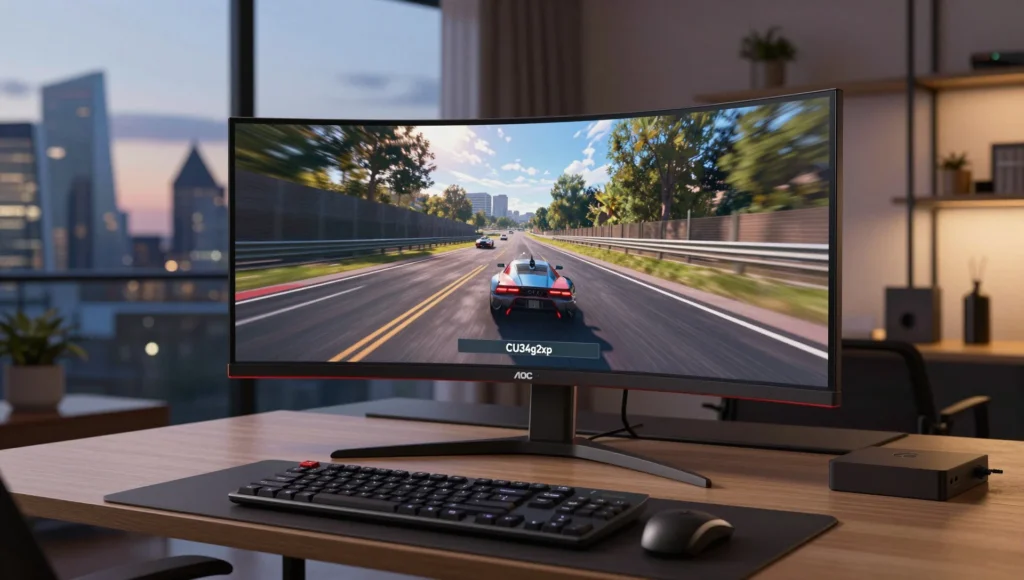
A 34-inch ultrawide can make a familiar game feel more cinematic, while a high refresh rate promises smoother movement in fast-paced play. The AOC CU34G2XP brings those ideas together with a curved VA panel, a 3440 × 1440 resolution and a headline refresh rate of up to 180Hz.
I haven’t personally bench-tested this monitor, so I won’t pretend to offer hands-on measurements. Instead, I’ll assess its published features and explain what they mean in everyday use. The key question is whether this combination suits your games, computer and desk — because an impressive spec sheet is only useful if it fits the way you play.
What the AOC CU34G2XP 34 VA curved gaming monitor offers
The CU34G2XP is a 34-inch, 21:9 gaming display. That aspect ratio makes it wider than a standard 16:9 monitor, while its 3440 × 1440 resolution gives you more horizontal workspace than a conventional QHD screen. The curved VA panel has a 1500R curve, designed to bring the edges of the wide display closer to your field of view.
| Feature | Published specification | What it means |
|---|---|---|
| Screen size and shape | 34-inch, 21:9, 1500R curve | Wide, immersive viewing area |
| Resolution | 3440 × 1440 | Ultrawide QHD detail |
| Refresh rate | Up to 180Hz | Potentially smoother PC gameplay |
| Panel type | VA | Strong native contrast; response can vary by scene |
| HDR rating | VESA DisplayHDR 400 | Basic HDR support, not premium HDR |
| Connections | DisplayPort, HDMI and USB hub | Useful flexibility; check refresh limits |
AOC advertises a 1ms grey-to-grey response time, but treat that as a specification rather than a promise that every pixel transition will be equally fast. Response behaviour depends on the panel mode and the colour changes on screen. The practical takeaway is that this is a feature-rich PC gaming monitor, but its real appeal comes from its screen format and contrast, not any single number.
How the 34-inch curved ultrawide works for gaming and work
The extra width is the first thing you’re likely to notice. In supported games, an ultrawide view can show more of the scene to either side, which is especially appealing in racing, flight, role-playing and open-world titles. The 1500R curve helps the screen feel more enveloping from a sensible desk distance, although the effect is personal: some people enjoy it straight away, while others prefer a flat panel.
The wide format can also help with everyday tasks. I’d find it handy for keeping a document open beside a browser, or arranging a video call and notes on one screen. It doesn’t replace two separate monitors in every workflow, but it can reduce the bezel gap and cable clutter.
There are trade-offs. Not every game supports 21:9 properly. Some may show black bars, stretch the image or limit the field of view, so check support for the games you play most. A 34-inch screen also needs more desk width than a typical 27-inch monitor. Measure the space, including room for the stand and speakers, before you buy.
Refresh rate, response time and adaptive sync
A refresh rate of up to 180Hz means the screen can display up to 180 image updates per second when your computer can deliver them. Compared with a 60Hz display, that can make camera movement and mouse input feel smoother. It’s useful in shooters and racing games, although you’ll need a graphics card capable of driving a demanding ultrawide resolution at high frame rates.
For the maximum refresh rate, I’d start with a DisplayPort connection and the supplied or a suitably rated cable. AOC’s specifications list up to 180Hz via DisplayPort; HDMI may have a lower maximum at this resolution. Check the manual and your graphics card’s output limits rather than assuming that every port reaches the headline rate.
Adaptive sync can help match the monitor’s refresh to changing frame rates, reducing visible tearing and judder. The result depends on compatibility between the monitor, graphics card and software settings. It’s sensible to enable the relevant adaptive-sync option in the monitor menu and graphics control panel, then check that the game is running at the desired resolution and refresh rate.
Finally, don’t judge response time by the “1ms” claim alone. Aggressive overdrive modes can create bright trails or overshoot. Try the middle response-time setting first, then adjust only if motion looks blurred.
VA contrast, colour and HDR explained
VA panels are popular because they typically offer deeper native contrast than many standard IPS screens. That can make dark scenes look richer in a dim room — a genuine plus for atmospheric games and films. The trade-off is that some VA displays show dark smearing: moving objects against dark backgrounds can leave a faint trail. How noticeable this is varies by game, settings and the viewer.
The CU34G2XP is also listed with VESA DisplayHDR 400 support. That provides a basic HDR signal and brightness standard, but it shouldn’t be confused with the dramatic highlights and precise local dimming of a higher-end HDR television or monitor. In practice, HDR quality depends on peak brightness, contrast control and how a game handles HDR. I’d try HDR in a few titles and compare it with SDR rather than assuming it will always look better.
Colour coverage figures can sound impressive, but coverage alone doesn’t tell you how accurate the colours look. For everyday gaming, the out-of-box image may be perfectly enjoyable; for colour-critical photo or video work, I’d use a calibration tool and check independent measurements. In short, expect immersive contrast and versatile colour, but keep HDR expectations realistic.
Ports, speakers and ergonomic adjustments
The connection selection is designed for a flexible desktop setup. This model is listed with DisplayPort, HDMI and a USB hub, which can help you connect a PC, another video source and peripherals. The USB hub needs an upstream connection to your computer to pass data; it does not work as a wireless or standalone hub. Check the exact port count and specifications on the UK listing for the model suffix you’re considering.
The stand offers useful adjustments, including height, tilt and swivel, which make it easier to position the screen comfortably. That matters on a large curved display: if the monitor sits too low or too close, you may find yourself craning your neck. The monitor also supports VESA mounting, so a compatible arm is an option if your desk is tight.
Built-in speakers, where included on the specific version, are best treated as a convenience for system sounds or a quick call rather than a substitute for headphones or dedicated desktop speakers. Before ordering, check the retailer’s specification sheet for the exact model code, bundled cables and included accessories. Small regional differences can matter more than the product name suggests.
Pros, cons and the right type of player
Here’s how I’d weigh the main strengths and compromises:
Pros
- Wide 21:9 screen suits supported games, films and side-by-side work.
- 3440 × 1440 resolution offers more workspace than standard QHD.
- Up to 180Hz refresh rate supports smooth PC gameplay.
- VA contrast can give dark scenes more depth.
- USB connectivity and an adjustable stand add everyday flexibility.
Cons
- A powerful graphics card is helpful for high frame rates at ultrawide resolution.
- Some games and video sources don’t handle 21:9 well.
- VA dark-scene response can produce smearing for sensitive viewers.
- DisplayHDR 400 is entry-level HDR, not a guarantee of striking HDR.
- The wide panel takes up substantial desk space.
I’d shortlist it if you play immersive single-player games, want a wide workspace, and have a PC that can make good use of 3440 × 1440. Competitive players who prioritise the fastest possible response and esports-standard aspect ratios may prefer a smaller, flat monitor. If your main aim is deep blacks and top-tier HDR, compare OLED options too — while accounting for their price and potential image-retention considerations.
How to get the best experience from the monitor
Start with the basics: place the screen centrally, set its height so you can look slightly down at the middle, and sit far enough back to see the whole panel comfortably. A curved monitor is most effective when you sit near its centre rather than off to one side.
Next, connect your PC by DisplayPort if you want to explore the top refresh rate. In your operating system’s display settings, choose 3440 × 1440 and select the highest refresh rate available. Don’t assume the monitor is automatically using 180Hz; some systems default to a lower setting.
For gaming, use adaptive sync if your hardware supports it. Then test different overdrive modes in a game with dark, fast-moving scenes. If you see bright inverse trails, reduce the response-time setting. If motion looks too soft, try a stronger mode and compare.
The resolution also affects performance. 3440 × 1440 contains roughly 34% more pixels than 2560 × 1440, so a game that runs smoothly at standard QHD may deliver fewer frames on this display. If performance dips, lower demanding graphics settings or use a game’s upscaling option before reducing the native resolution. That way, you can find a balance between sharpness and smoothness.
How it compares with other gaming monitor types
The right comparison depends on what you value most. Here’s a straightforward guide:
| Monitor type | Main advantage | Main compromise |
|---|---|---|
| 34-inch ultrawide VA | Wide view and strong contrast | Game support and GPU demands |
| 27-inch QHD IPS | Easier to drive; often good viewing angles | Less horizontal space |
| 32-inch 4K display | More detail for supported content | Higher graphics demand; often lower refresh for the price |
| OLED gaming monitor | Excellent blacks and rapid pixel response | Higher cost and possible image-retention concerns |
| Flat 34-inch ultrawide | Wide workspace without a curve | Edges can feel farther away |
Against a 27-inch QHD monitor, the AOC gives you a more panoramic view, but asks more from your graphics card. A 4K model may deliver finer detail, although it has a different shape and workload. OLED has the edge for black levels and pixel response, but may cost considerably more.
If you’re moving from a standard 16:9 display, I’d put game compatibility and desk space at the top of your checklist. Those daily-use factors are more likely to affect your satisfaction than a small difference in a headline specification.
What to check before buying in the UK
Compare the full model code, not just the product name. Retail listings can use different suffixes, and the included cables, port details or bundled accessories may vary. Confirm the refresh rate supported by the connection you plan to use, especially if you expect 180Hz over DisplayPort.
Also check the retailer’s returns policy, warranty terms and dead-pixel policy before opening the box. A monitor is a large purchase, and it’s useful to know what options you have if the panel arrives damaged or you find the curve uncomfortable. Keep the packaging until you’re sure you’re happy with it.
Prices change, so I wouldn’t rely on an old review’s price as a buying target. Compare the current cost with other 34-inch 3440 × 1440 displays, and consider whether you’ll actually use the high refresh rate, USB hub and adjustable stand. If you mostly play games that don’t support ultrawide, a different screen may be better value.
FAQs
Can this monitor run at 180Hz?
AOC lists up to 180Hz, with DisplayPort the connection to check first. Your graphics card, cable, resolution and settings must also support that refresh rate.
Is 3440 × 1440 demanding for a gaming PC?
It is more demanding than standard 2560 × 1440 because it renders about 34% more pixels. A capable graphics card helps if you want high frame rates and detailed settings.
Is the 1500R curve suitable for everyday work?
It can be comfortable for spreadsheets, browsing and multitasking, particularly when you sit centred in front of the display. If you work with straight lines or colour-critical content, try a curved screen before committing if possible.
Does DisplayHDR 400 mean premium HDR?
No. It indicates basic HDR support, but doesn’t guarantee the deep blacks, local dimming or bright highlights found on more advanced displays. Try HDR in your own games and compare it with SDR.
Will every game fill the ultrawide screen?
No. Many PC games support 21:9, but some use black bars, stretch the picture or restrict the field of view. Check support for your regular games before buying.
Can I mount it on a monitor arm?
The model is listed with VESA mounting support, but check the exact pattern, monitor weight and arm capacity in the product manual. A suitable arm can free up desk space and make positioning easier.
Conclusion
The AOC CU34G2XP is an appealing option if you want a curved 34-inch ultrawide for PC gaming and everyday multitasking. Its 3440 × 1440 resolution, VA contrast and up-to-180Hz refresh rate make a versatile package, while adaptive sync and an adjustable stand add practical value.
It isn’t a universal fit: ultrawide support varies between games, the resolution needs a capable PC, and HDR400 is modest. I’d compare the exact UK model details, check your desk and graphics card, and choose it for the wide-screen experience — not simply for the biggest numbers on the box.