
Thinking about upgrading your monitor but stuck between 4k and 1080p? I’ve spent years testing both, and here’s my no-BS take on which resolution wins — and why.
So you’re looking at a new monitor, scrolling through specs, and bam — you’re hit with the same question everyone asks: 4k vs. 1080p? It sounds simple, but trust me, it’s a rabbit hole.
On one hand, 1080p (Full HD) has been the gold standard for ages. It’s affordable, it works smoothly, and it’s everywhere. On the other hand, 4K (Ultra HD) promises sharper text, richer detail, and a future-proof setup.
I’ve unboxed, tested, and actually lived with dozens of monitors over the past five years — from budget 24-inch 1080p panels to high-end 32-inch 4K IPS beasts. I’ve gamed on them, edited photos on them, and even tried to watch YouTube on them while pretending to work. 😅
In this article, I’m going to break down the real differences between 4k and 1080p for a computer monitor — not just marketing fluff. I’ll cover screen size, refresh rate, HDR, gaming performance, productivity gains, and what you actually need based on your use case.
Grab a coffee (or tea, I don’t judge), and let’s settle this debate once and for all. ☕
What Do 4k and 1080p Actually Mean?
Before we jump into the comparisons, let’s get the basics straight. You’ve probably heard the terms a million times, but do you really know what they mean?
Resolution refers to the number of pixels on the screen. More pixels = sharper image. Simple, right?
A 1080p monitor has a resolution of 1920 x 1080. That means 1,920 pixels horizontally and 1,080 pixels vertically. That’s just over 2 million pixels in total.
A 4K monitor (also called Ultra HD or 2160p) has a resolution of 3840 x 2160. That’s 3,840 pixels across and 2,160 pixels down — bringing the total to over 8 million pixels.
That’s four times the pixels of 1080p.
To put it in perspective: imagine a tiny pixel is a single Lego brick. A 1080p monitor uses about 2 million bricks to build an image. A 4K monitor uses 8 million bricks. That’s a lot more detail.
This is where the term pixel density comes in. It’s measured in PPI (pixels per inch). A 27-inch 1080p monitor has a PPI of around 81, which means individual pixels are visible if you sit close. A 27-inch 4K monitor has a PPI of about 163 — so much denser, making text look almost printed on paper.
Why this matters for your study? If you’re reading documents, code, or spreadsheets, higher pixel density means less eye strain and sharper text. For gaming, it means you can spot enemies hiding in bushes from across the map.
The Monitor Market in 2026: Where We Stand
Let me level with you: the monitor market in 2026 is a beautiful mess. 🎉
Almost every monitor over 27 inches now ships with a 4K native resolution. 1080p panels are still common in the budget and small-size segments (24 inches and under), but they’re slowly being pushed to the sidelines.
Here’s what the market looks like today:
- 1080p monitors: 100−250, 24-27 inches, 60Hz to 240Hz. Best for esports gaming on a budget.
- 1440p monitors: 250−500, 27-32 inches, 144Hz to 240Hz. The sweet spot for gamers who want sharpness without killing their GPU.
- 4K monitors: 300−1,500+, 27-32 inches, 60Hz to 144Hz. The holy grail for productivity and immersive single-player gaming.
My honest take? If you’re buying a new monitor today and your budget allows, go 4K. You’ll thank yourself in three years when 4K content is even more common. But if you’re a competitive gamer on a tight budget, a high-refresh 1080p panel still packs a punch.
Visual Showdown: 4k vs. 1080p Side-by-Side
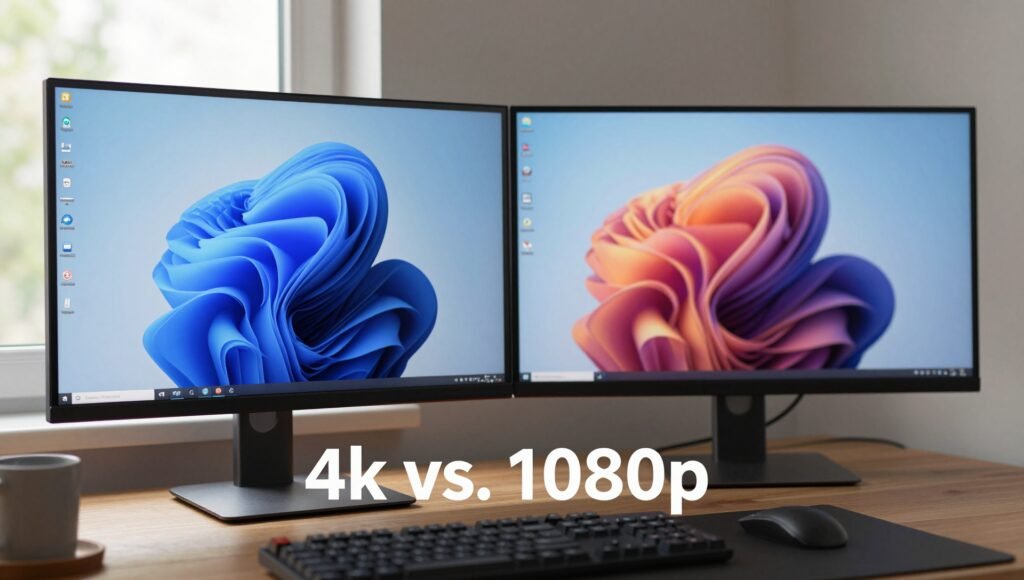
Alright, here’s the part you’ve been waiting for: the visual comparison. I set up two identical 27-inch IPS monitors side-by-side — one at native 4K, one at native 1080p. Both were calibrated to the same brightness and color settings.
The results? Night and day.
Sharpness and Detail
In a native 4K image, every pixel is crisp. When I opened a high-resolution photo of a forest, I could see individual leaves, moss on tree bark, and tiny insects crawling. On the 1080p monitor, the same image looked fuzzy — like someone smeared a thin layer of Vaseline on the screen.
Upscaling is where things get interesting.
I played a 1080p video on the 4K monitor. The monitor had to “upscale” the lower-resolution video to fit the higher pixel count. Now, a cheap monitor will just stretch the image — blurry city. But a good 4K monitor uses clever algorithms to make the upscaled image look surprisingly decent.
That said, native 4K always beats upscaled 1080p. No contest.
Text Clarity
For productivity, this is the biggest difference. On a 1080p 27-inch screen, text looks blocky — especially in smaller font sizes like 10pt or 9pt. On a 4K screen, text is razor-sharp. If you spend your day reading code, editing documents, or browsing Reddit threads, your eyes will thank you.
Native 4k vs. Upscaled 1080p: What You Can’t Unsee
I have a confession: I once thought upscaling was “good enough.” I was wrong. 😅
When you feed a 4K monitor a 1080p signal, the monitor has to double the image dimensions. Unlike a simple 2x enlargement, most modern monitors apply sophisticated processing. They try to fill in the missing details.
But here’s the catch: they can’t create detail that wasn’t there in the first place.
Take a diagonal line that’s one pixel thick. On a native 4K image, that line is smooth and sharp. On an upscaled 1080p image, the line becomes jagged and soft — like stairs instead of a ramp.
This is especially noticeable in games. In Cyberpunk 2077, the neon signs on a 1080p image look blurry when upscaled. On native 4K, they’re crisp and readable.
Is it a dealbreaker? Not if you’re mostly watching YouTube or streaming movies — the video compression hides the flaws. But for photo editing, graphic design, or competitive gaming, native 4K is the way to go.
Monitor Size Matters: Why 27-Inch is the Sweet Spot
Here’s a golden rule: screen size and resolution go hand-in-hand.
At 24 inches, 1080p looks fine — the pixels are small enough that you can’t see them unless you lean in. At 27 inches, 1080p starts looking grainy. At 32 inches, 1080p is a pixelated mess.
For 4K, the sweet spot is 27 to 32 inches. At 27 inches, the pixel density is amazing — sharp text, detailed images, and no visible pixels. At 32 inches, it’s still great, but you might notice the pixels if you sit very close to the screen.
My recommendation?
- 24 inches: go 1080p
- 27 inches: go 1440p or 4K
- 32 inches: go 4K, no compromises
Think of it like a pizza. A small pizza (24 inches) with a few toppings (1080p) looks fine. But a large pizza (32 inches) needs more toppings (4K) to look appetizing. 🍕
Gaming Performance: Frames vs. Pixels
This is where things get spicy. Gamers, listen up.
A 4K monitor has four times the pixels of a 1080p monitor. Your graphics card has to push those extra pixels. That means lower frame rates — sometimes drastically lower.
Example with an RTX 4080:
- Cyberpunk 2077 at 1080p: 120-140 FPS
- Cyberpunk 2077 at 4K: 40-60 FPS
That’s a huge difference. If you’re a competitive gamer playing Valorant or CS:GO, 1080p at 240Hz will give you buttery-smooth gameplay. A 4K monitor at 60Hz? Not so much.
But here’s the twist: many 4K gaming monitors now support 144Hz or even 240Hz. They’re expensive (think $800+), but they exist. And with technologies like DLSS (Nvidia) and FSR (AMD), you can run games at 1440p and upscale to 4K with minimal visual loss.
The verdict:
- If you play fast-paced shooters → 1080p 240Hz or 1440p 165Hz
- If you play story-driven or strategy games → 4K 60Hz or 4K 144Hz
- If you’re on a budget → 1080p is still excellent
Productivity Paradise: Why Creators Love 4K
If you’re a content creator, designer, or data analyst, this section is for you.
The difference in screen real estate is staggering.
On a 1080p monitor, you might fit a Word document and a browser window side-by-side — barely. On a 4K monitor at 100% scaling, you can fit four full-sized windows. Imagine having Photoshop, a reference image, a video tutorial, and a Spotify playlist all visible at the same time. Productivity heaven. 😇
Text rendering is another win. 4K monitors have high PPI, which means anti-aliased fonts look incredible. No more squinting at jagged letters or blurry spreadsheet cells.
But wait — there’s a catch. Windows scaling isn’t perfect. Some older apps don’t handle high-DPI displays well, resulting in tiny, unusable text. You’ll need to set scaling to 150% or 200% for most apps, and that can sometimes cause blurry icons or misaligned UI elements.
My advice: If you’re a Mac user, 4K scaling is flawless. If you’re on Windows, test the scaling with your most-used apps before committing.
HDR and Color Performance: The Secret Weapon of 4K Monitors
Here’s something people often overlook when comparing 4k vs. 1080p: HDR (High Dynamic Range).
HDR is about color and brightness, not resolution. But — and this is important — most 4K monitors support HDR, while most 1080p monitors don’t.
HDR allows your monitor to display a wider range of colors and higher peak brightness. In a game, the sun actually looks blinding. In a movie, shadows have depth instead of being a uniform black blob.
The catch? Not all HDR is created equal. A cheap 4K monitor with “HDR10” support might only hit 350 nits of brightness — barely noticeable. A good monitor (like an OLED or Mini-LED) can hit 1000 nits, and that’s where HDR shines.
For content creators: If you work with photos or video, a 4K monitor with 100% sRGB or DCI-P3 coverage is essential. Color accuracy at 1080p just doesn’t compare.
Input Lag and Response Time: The Silent Dealbreakers
Let’s talk about something that’s often ignored in the 4k vs. 1080p debate: input lag and response time.
Input lag is the delay between moving your mouse and seeing the action on screen. For competitive gaming, you want it below 10ms. Most 4K gaming monitors now achieve 4-8ms input lag, which is excellent.
Response time is how fast a pixel can change from black to white (or gray to gray). IPS panels typically have 4-5ms response times, while TN panels go as low as 1ms.
The reality check: A high-quality 4K monitor with a fast response time feels just as responsive as a 1080p monitor for casual and even competitive gaming. The real bottleneck is your GPU — can it push enough frames?
If you’re buying a 4K monitor for gaming, look for one with 1ms MPRT or G-Sync / FreeSync compatibility. These features smooth out motion and prevent screen tearing.
The Upscaling Reality Check: Can a 1080p Look Good on 4K?
Let me address the elephant in the room. You’re thinking: “I’ll just buy a 4K monitor and watch my 1080p content on it. How bad can it be?”
The answer: it depends on the monitor’s upscaling engine.
Cheap monitors (think 250)doapoorjob.Theyjuststretchthepixels,resultinginblurry,softimages.Mid−rangemonitors(400-600)usebetteralgorithmsthatcleanupjaggededges.Premiummonitors(700+) often use dedicated processors that make upscaled content look really good.
But here’s the hard truth: No amount of upscaling can match native resolution. It’s like trying to polish a turd — you can make it shiny, but it’s still a turd. 💩
My tip: If most of your content is still 1080p (e.g., YouTube videos, older movies), you might be better off saving cash and sticking with 1080p. But if you’re a power user who watches 4K content, creates media, or games at high resolutions, the upgrade is worth every penny.
Comparing Streaming Services and Bandwidth
Here’s a side of the debate that’s rarely discussed: streaming quality.
Even if you buy a 4K monitor, your streaming service might not deliver true 4K content. Netflix, for example, requires the top-tier Premium plan (20+/month)for4K,HDR,andDolbyAtmos.Thestandardplan(15.49) maxes out at 1080p.
Here’s a quick comparison of popular streaming services (as of 2026):
| Service | 1080p Plan | 4K Plan | Price Difference |
|---|---|---|---|
| Netflix | Standard ($15.49) | Premium ($22.99) | +$7.50 |
| Disney+ | Standard ($7.99) | Premium ($13.99) | +$6.00 |
| Amazon Prime | Standard ($8.99) | Ultra ($12.99) | +$4.00 |
| Max (HBO) | Standard ($9.99) | Premium ($15.99) | +$6.00 |
The bandwidth factor: 4K streaming requires at least 25 Mbps stable internet. If you have a slow connection or a busy household with multiple devices, you might experience buffering or automatic downscaling to 1080p.
The takeaway: A 4K monitor is only as good as the content you feed it. If you’re not willing to pay for premium streaming tiers or upgrade your internet, you won’t see the full benefit.
Resolution Comparison Chart: Quick Reference
Here’s a simple table to compare the most common resolutions:
| Resolution | Horizontal Pixels | Vertical Pixels | Total Pixels | Pixel Density (27″) | Best For |
|---|---|---|---|---|---|
| 1080p (FHD) | 1920 | 1080 | 2.07 million | 81 PPI | Budget, esports |
| 1440p (QHD) | 2560 | 1440 | 3.69 million | 108 PPI | Gaming, productivity |
| 4K (UHD) | 3840 | 2160 | 8.29 million | 163 PPI | Content creation, gaming |
Pros and Cons
4K Monitor Pros
- Incredible sharpness: Text, images, and videos look lifelike.
- Future-proofing: More and more content is being released in 4K.
- Productivity boost: Massive screen real estate for multitasking.
- Better HDR support: Most 4K monitors offer HDR for richer colors.
4K Monitor Cons
- Higher cost: Monitors and GPUs cost more.
- Demanding on hardware: Need a powerful graphics card for gaming.
- Scaling issues: Windows scaling can cause UI problems with older apps.
1080p Monitor Pros
- Affordable: Great monitors available for under $200.
- Easy to drive: Any modern GPU can handle 1080p gaming.
- High refresh rates: 240Hz+ monitors are cheap.
- No scaling issues: Everything fits perfectly on screen.
1080p Monitor Cons
- Visible pixels: On 27-inch+ screens, it looks grainy.
- Less screen space: Can’t fit multiple windows comfortably.
- Outdated tech: Fewer features like HDR or wide color gamut.
6 Frequently Asked Questions
What resolution is better for gaming, 4K or 1080p?
It depends on your GPU and the type of games you play. For fast-paced shooters, 1080p at 240Hz is smoother. For story-driven or open-world games, 4K at 60Hz offers incredible visual detail. If you have an RTX 4070 or better, 4K gaming is very doable.
Do I need a special HDMI or DisplayPort cable for 4K?
Yes. For 4K at 60Hz, an HDMI 2.0 or DisplayPort 1.4 cable is enough. For 4K at 144Hz or higher, you’ll need an HDMI 2.1 or DisplayPort 2.0 cable. Most monitors come with the right cable in the box, but check before you buy.
Can I use a 4K monitor without a powerful graphics card?
Yes, but not for gaming. For everyday tasks like web browsing, office work, and YouTube, integrated graphics (Intel UHD or AMD Radeon) can handle 4K output at 60Hz. For gaming, you’ll need a dedicated GPU.
Is 1080p still good in 2026?
Absolutely. For a 24-inch monitor, 1080p is sharp enough. It’s also the standard for esports competitions because it maximizes frame rates. If you’re on a tight budget or a competitive gamer, 1080p is still a solid choice.
What is the best size for a 4K monitor?
27 inches is the sweet spot for pixel density and desk space. 32 inches offers more screen real estate but requires you to sit further back. For 1080p, stick to 24 inches or smaller to avoid visible pixels.
Does a 4K monitor cause eye strain more than 1080p?
No — in fact, the opposite is often true. Because 4K monitors have higher pixel density, text is smoother and easier to read, reducing eye strain. Just make sure to adjust Windows scaling to 150% or 200% so text isn’t too small.
Conclusion: The Final Verdict
So, 4k vs. 1080p — which one should you pick?
If you value clarity and detail: Go 4K. The sharpness is addictive, and once you’ve edited a photo on a 4K screen, you’ll never want to go back.
If you value speed and budget: Stick with 1080p. For under $200, you can get a 240Hz monitor that’s perfect for competitive gaming.
My personal recommendation? Get a 27-inch 4K monitor with at least 144Hz and good HDR support. It’s the Swiss Army knife of monitors — works for productivity, gaming, and content consumption.
The world is moving to 4K, inch by inch. Don’t be the person stuck in 2015. 😉